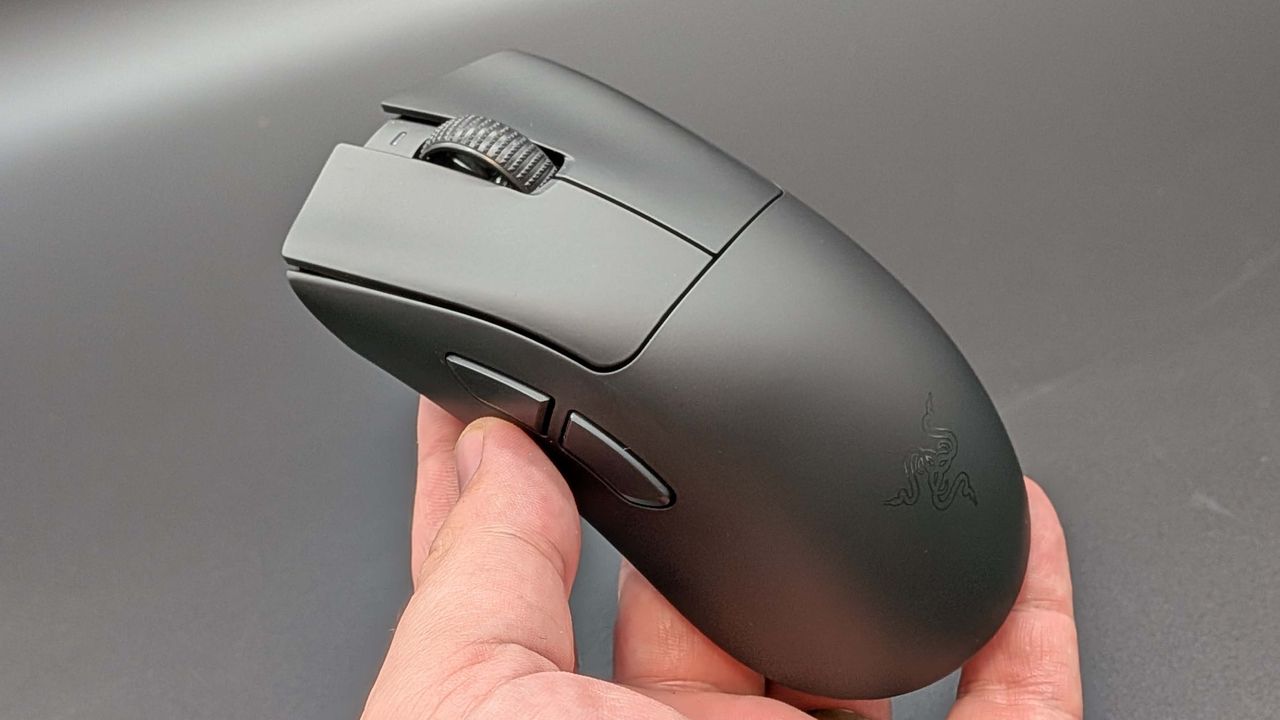
This tool tells you exactly how much your latency could improve by changing your mouse's polling rate
Overview & Key Takeaways
1 kHz, 2 kHz, 8 kHz: Hopefully, we can soon settle the score.
I Built a Tool to find the PERFECT Mouse Polling Rate for EVERYONE - YouTube
We've long been sceptical of 8 kHz polling here at PC Gamer. At least based on how it feels experientially, provided I'm using a good mouse with a solid connection, there feels like very little difference between 8 kHz, 4 kHz, 2 kHz, and heck, even 1 kHz polling. But felt experience, while important, isn't the most objective and accurate measurement. What is a lot more objective is a simple spreadsheet tool (version 0.6) that tech and gaming YouTuber BaldSquid recently cooked up.
It does involve some manual work, but all the math has been done for you, so all you have to do is fill in your polling rate and your frame rates, and the spreadsheet should spit out the increase or decrease in input latency that you're getting. The math actually seems fairly simple each step of the way, but putting it all together makes things much easier than trying to figure it out manually.
(Image credit: Future)
First, save the spreadsheet to your own Google Drive by going to File > Make a copy. Then run a manual benchmark, perhaps using something like Nvidia FrameView to record your framerates, making sure you're moving your mouse around in-game while you do so. Then, do the same but with your mouse at whatever polling rate you want to compare it to, and try to move your mouse the same amount as you did the first time.
Once you've got your results, you can input your average and 1% low frame rates into the spreadsheet, and the spreadsheet will do everything else for you. Essentially, it will tell you whether the latency benefit you get for increasing your polling rate offsets any potential decrease you see in frame rate, when it comes to visible mouse latency.
If you double your polling rate, your input latency will be reduced, and how much of a reduction you get is shown in cells A18 and A20 in milliseconds. But if you lose frames, you have a "visual penalty" which can increase felt latency. How much of an increase in visual penalty you get is shown in cells B18 and B20, also in milliseconds. The net benefits on the right show you whether the former makes up for the latter, and by how much.
Ultimately, what you see in cells D18 and D20—the former showing you a best-case scenario, the latter a likely average scenario—is what matters. A green positive number means a reduction in latency by that amount, and a red negative number means an increase in latency by that amount. If it's red, it might not be worth it.
One thing you'll probably immediately notice is that we're only dealing in sub-millisecond improvements here.
There are a couple of caveats to all this. The first is that we have to remember we're not comparing apples to apples. The decrease in input latency that you get from increasing your polling rate should technically persist regardless of what your frame rate is, because games should register input even between frames. But it's going to feel like increased latency if you're only seeing those shots fire after they've actually registered, so it's still a useful comparison.
(Image credit: Future)
There's also the fact that refresh rates aren't being considered in the tool. If you're at 60 Hz and getting 240 fps, you're not going to feel all of the benefit of any reduction in input latency. The tool's results will map onto your perceived reality best when your frame rates are at or under your refresh rate, and the disparity between numbers and reality will become bigger the lower your refresh rate is.
And, of course, the tool makes no account of the impact on battery life, which simply depends on how much you value it. I suppose you could add on your own cells that throw battery life into the mix, but testing there would take a while. In general, though, doubling your polling rate halves your battery, and going from 1 kHz to 8 kHz cuts it by 8x.
All these caveats aside, the tool's very useful to get a quick and dirty idea of whether you're getting any visible benefit from increasing your polling rate, and roughly how much.
Best gaming mouse 2026